

Parte 1. Como ativar o TuneSolo Spotify Music Converter
Passo 1. Instale TuneSolo Spotify Music Converter
Visite o site oficial do TuneSolo e baixe a versão mais recente do TuneSolo Spotify Music Converter para o seu sistema operacional. Você também pode escolher o instalador apropriado abaixo:
Recomenda-se sempre baixar a versão mais recente para aproveitar os novos recursos, melhorias de desempenho e correções de bugs.
Passo 2. Atualize para a assinatura Premium.
Antes de baixar músicas sem limitações, você precisa ativar o TuneSolo Spotify Music Converter com uma licença válida. A ativação desbloqueia todos os recursos premium.
- Versão de teste: A versão de avaliação permite que você explore o software antes de adquirir uma licença. Dependendo da política do produto, algumas limitações podem ser aplicadas, como um número limitado de conversões e acesso restrito a recursos premium.
- Versão Registrada: Após ativar sua licença, você poderá usar o arquivo TuneSolo Spotify Music Converter para baixar todo o conteúdo do arquivo Spotify.
Como comprar Spotify Music Converter (Windows) >>>
Como comprar Spotify Music Converter (Mac) >>>
Passo 3. Faça login na sua conta TuneSolo
- Abra o arquivo TuneSolo Spotify Music Converter no seu computador.
- Clique no botão "Entrar" ou "Conta" no canto inferior esquerdo da interface principal.
- Selecione "Entrar com a licença" na janela pop-up.
- Insira seu endereço de e-mail e sua chave de licença e clique em "Entrar" para ativar sua assinatura.
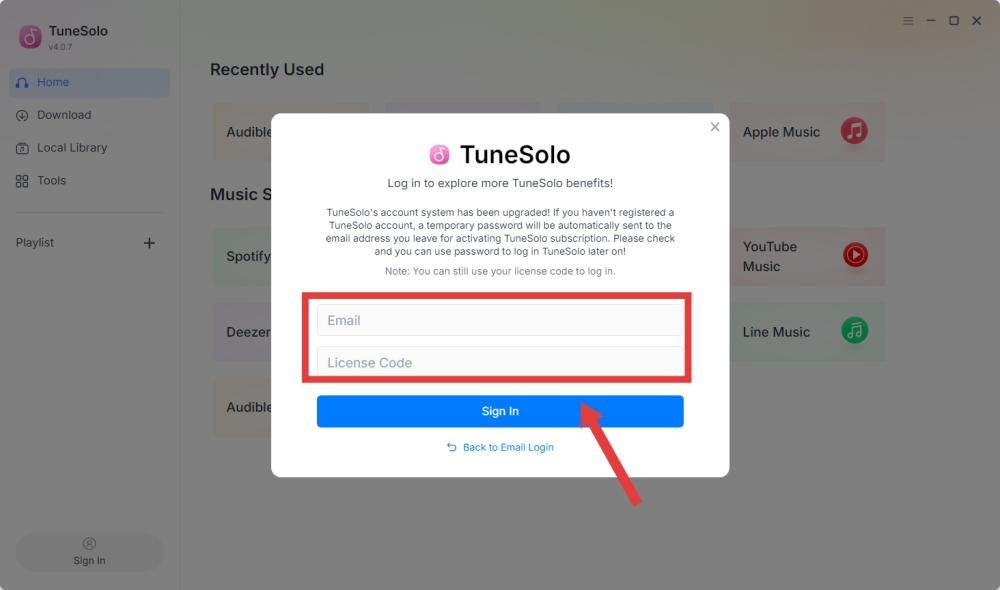
Se a ativação for bem-sucedida, uma mensagem de confirmação será exibida e todos os recursos premium serão desbloqueados imediatamente.
Passo 4. Verifique o status da sua ativação.
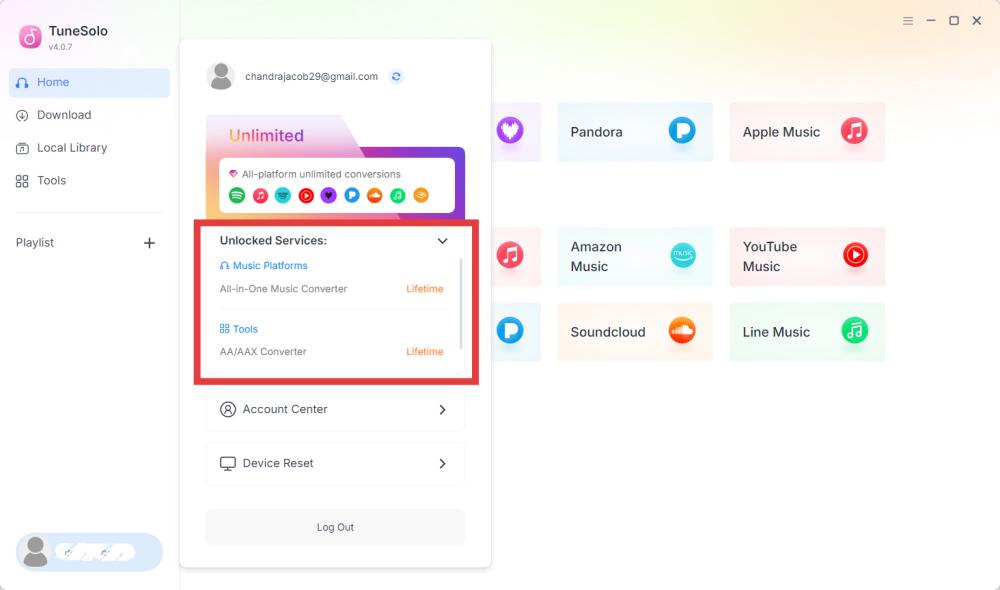
Clique no botão Conta, no canto inferior esquerdo da interface principal, para confirmar que o software foi ativado. Você deverá ver informações como:
- Email registrado
- Serviços desbloqueados
- Data de validade (se aplicável)
Solução para chave de licença inválida:
- Copie e cole a chave de licença diretamente do e-mail de confirmação da compra.
- Verifique se você comprou o produto correto.
- Verifique se você instalou a versão correta para o computador.
- Se o problema persistir, entre em contato com o suporte ao cliente e envie uma captura de tela.
Parte 2. Como configurar as definições básicas
Antes de baixar músicas, é recomendável configurar as opções de saída de acordo com suas preferências. O TuneSolo Spotify Music Converter permite personalizar o formato de saída, a qualidade do áudio, a pasta de destino, as regras de nomenclatura de arquivos e outras opções para organizar melhor sua biblioteca de músicas baixadas.
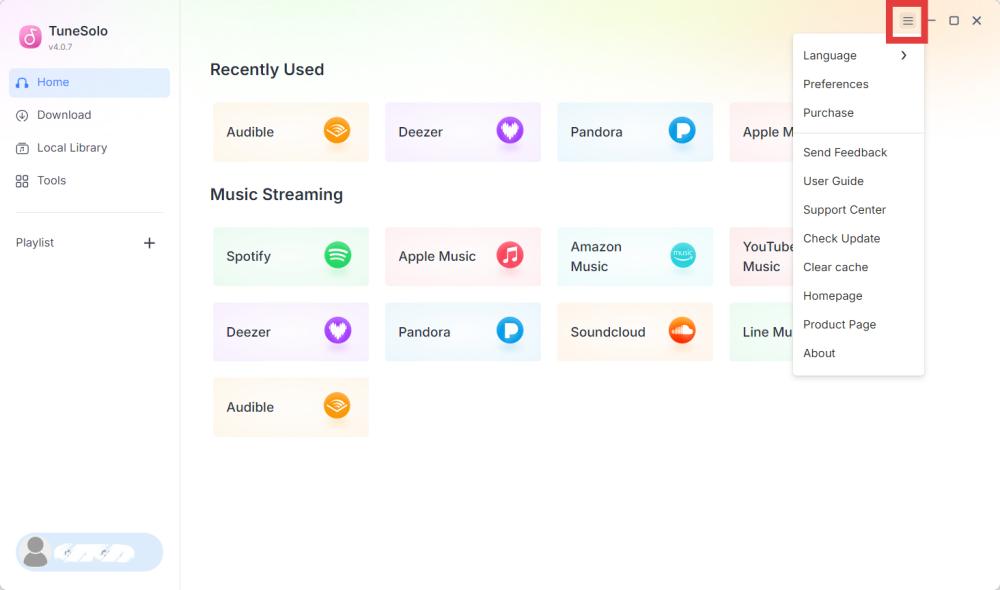
Para abrir a janela Configurações, clique no ícone de Menu no canto superior direito do programa e selecione Preferências (ou Configurações, dependendo da versão do seu software).
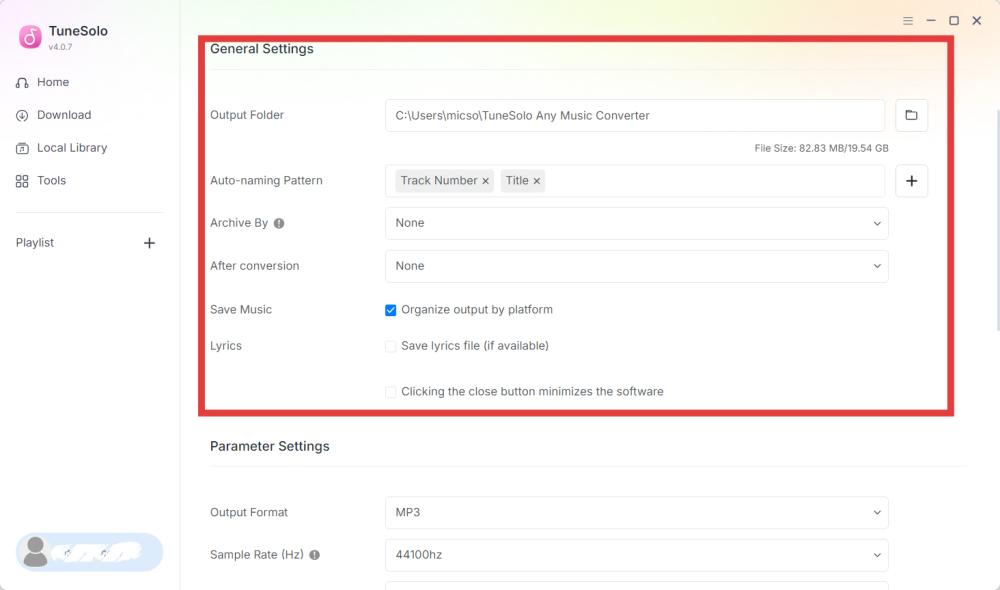
Configurações gerais
- Pasta de saída: Por padrão, os arquivos baixados são salvos na pasta de música padrão do sistema. Você pode escolher outro local, se preferir.
- Padrão de nomenclatura automática: O TuneSolo permite renomear automaticamente arquivos baixados usando metadados. Os elementos de nomenclatura disponíveis podem incluir Número da Faixa, Artista, Álbum e outros.
- Arquivado por: Você também pode organizar os arquivos baixados em pastas automaticamente. Os métodos de organização disponíveis podem incluir: Por Artista, Por Álbum e muito mais.
- Após a conversão: Você pode escolher a ação a ser tomada após a conclusão da conversão da música — por exemplo, sair automaticamente do programa.
- Salvar música: Organizar a saída por plataforma ou não.
- letra
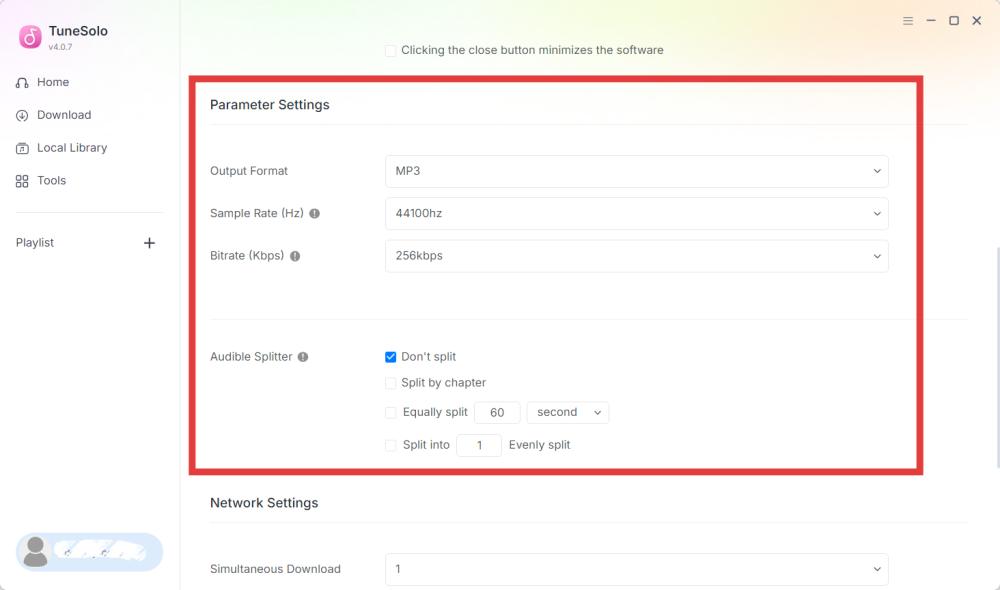
Configurações de Parâmetros
- Formato de saída: O TuneSolo suporta múltiplos formatos de saída para garantir a compatibilidade com diferentes dispositivos e reprodutores de mídia. Os formatos disponíveis incluem MP3, M4A (AAC), FLAC, WAV, M4A (ALAC) e AIFF.
- Taxa de amostragem (Hz): A taxa de amostragem determina a frequência com que o áudio é amostrado durante a gravação ou conversão. As opções típicas incluem 22050 Hz,, 44100 Hz (qualidade de CD), 48000 Hz, e Original.
- Taxa de bits (Kbps): A taxa de bits determina a quantidade de dados de áudio armazenados por segundo. Taxas de bits mais altas geralmente produzem melhor qualidade de som, mas resultam em arquivos maiores. As opções comuns incluem 128 kbps (audição casual), 256 kbps (reprodução de música de alta qualidade), 320 kbps (melhor qualidade para saída em MP3) e Original.
- Divisor Audible: Ao converter audiolivros Audible, o TuneSolo permite dividir audiolivros longos em segmentos menores para facilitar a reprodução e o gerenciamento de arquivos.
Configurações da rede
- Download simultâneo: Permite que o TuneSolo baixe várias faixas ao mesmo tempo, o que pode melhorar significativamente a eficiência ao baixar listas de reprodução ou álbuns grandes.
- Proxy: Se a sua rede exigir um servidor proxy para acessar a internet, você pode configurar as definições de proxy em TuneSolo.
Parte 3. Baixar música/playlist/podcast de Spotify
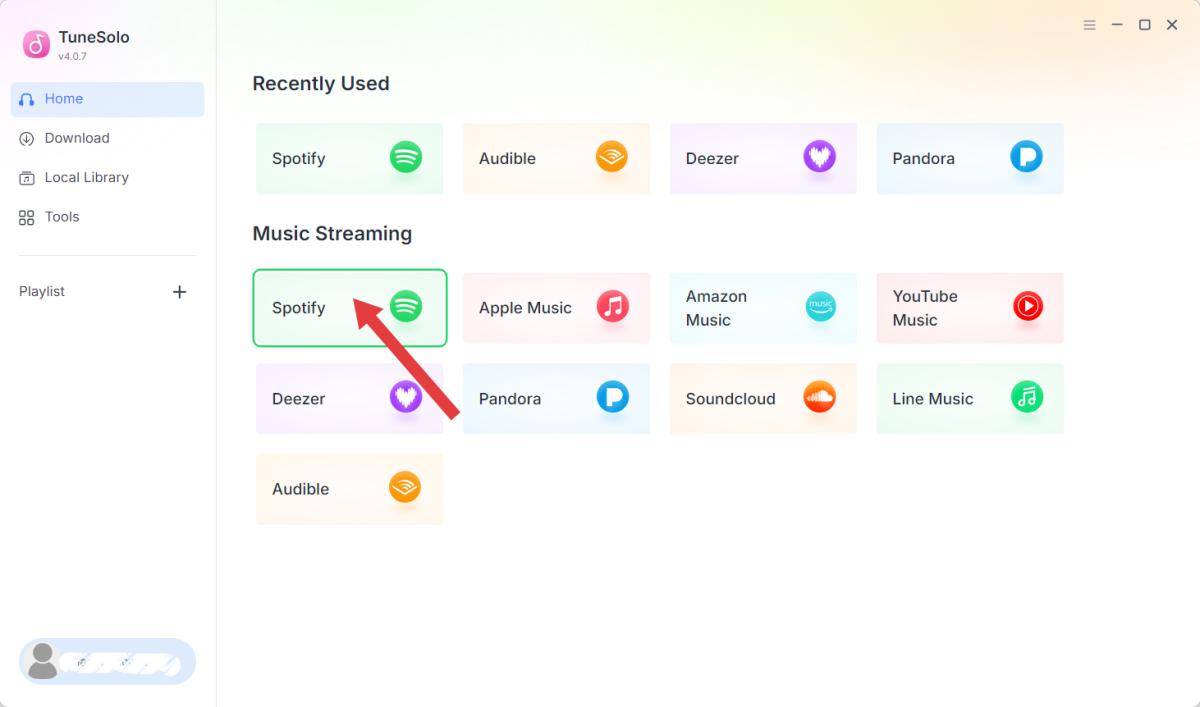
Passo 1. Selecione Spotify
Inicie o TuneSolo Spotify Music Converter. Clique em Spotify. O reprodutor web integrado será aberto automaticamente.
Passo 2. Faça login na sua conta Spotify
Para acessar sua biblioteca pessoal, listas de reprodução e conteúdo salvo, faça login com sua conta Spotify Premium/Gratuita.
*Observação: TuneSolo não armazena a senha da sua conta. A autenticação é feita através do reprodutor web oficial do serviço de streaming selecionado.
Passo 3. Adicione a música à lista de conversão.
Use a barra de pesquisa ou navegue pela sua biblioteca para localizar o conteúdo desejado. Em seguida, você pode fazer isso de uma das seguintes maneiras:
- Arrastar a música ou a lista de reprodução para o botão Adicionar, ou
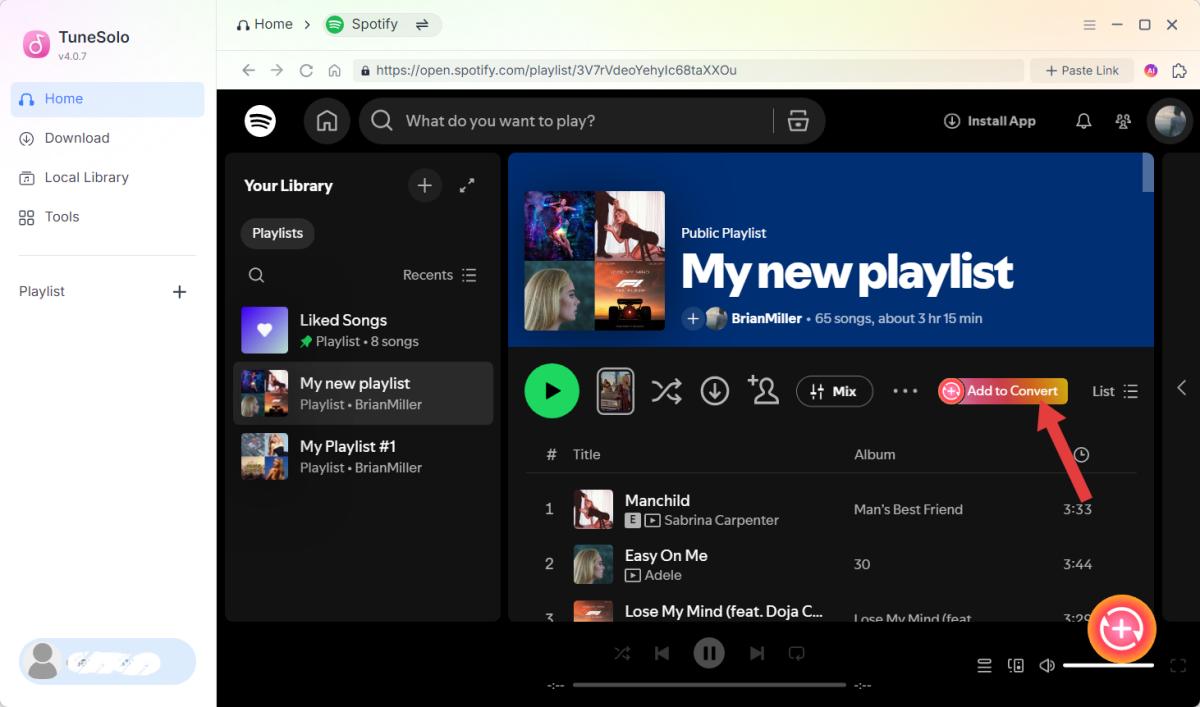
- Abra o álbum, a lista de reprodução ou o audiolivro e clique em Adicionar à Lista de Conversão.
O TuneSolo analisará o conteúdo selecionado e exibirá todas as faixas disponíveis.
*A disponibilidade das músicas pode variar conforme a região ou o tipo de conta de streaming.
Etapa 4. Configurar as definições de saída
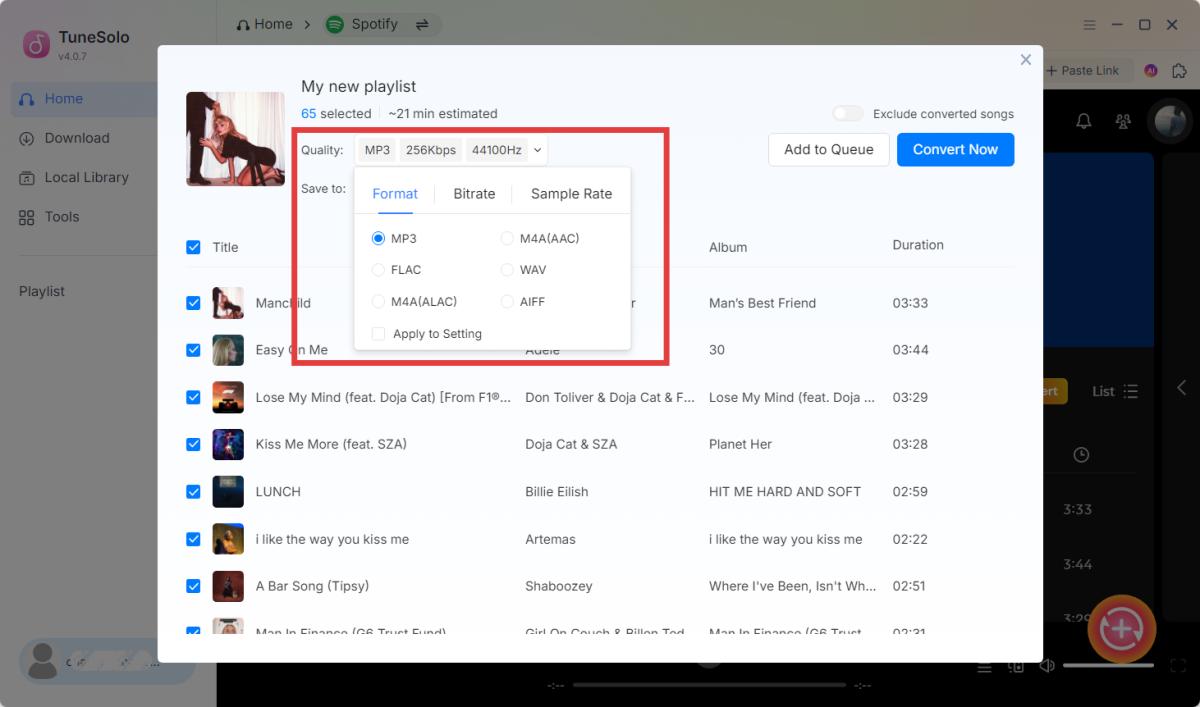
Analise a lista e desmarque os itens que não deseja baixar. Antes de baixar, verifique as configurações de saída, como formato, pasta de destino e qualidade do áudio.
Passo 5. Iniciar o download
Clique em Converter agora, Baixar ou Converter tudo (dependendo da versão do software) para iniciar o download do conteúdo selecionado.
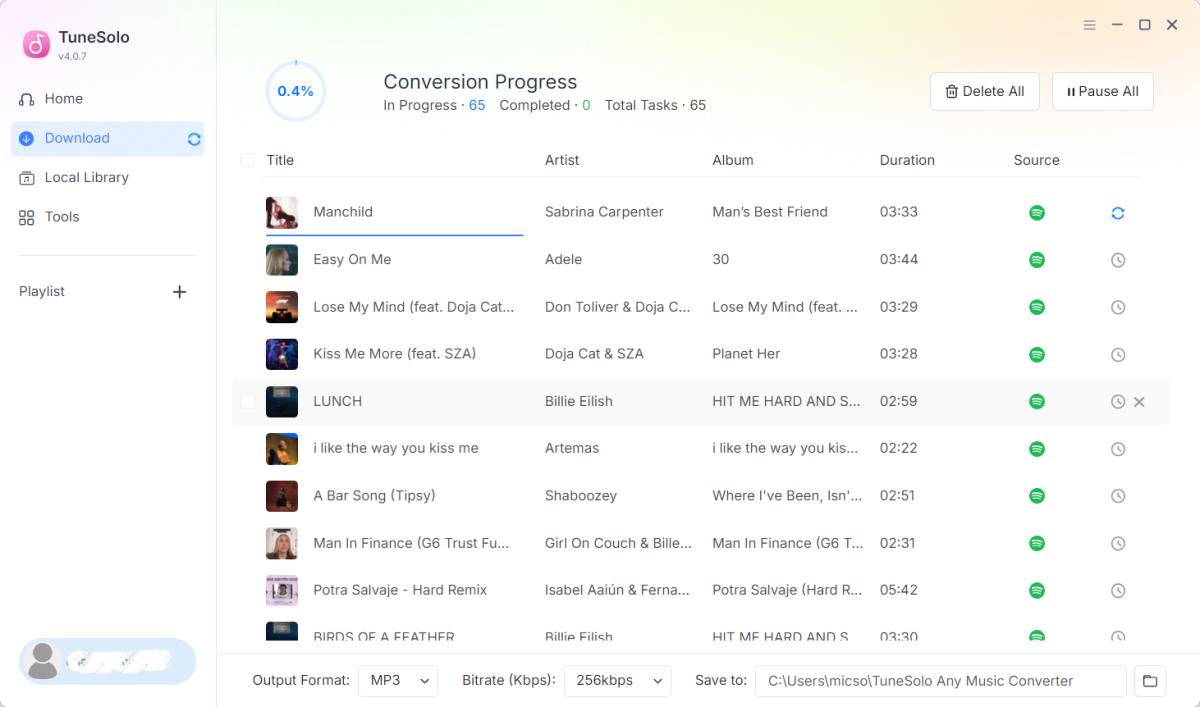
Passo 6. Acesse seus arquivos baixados
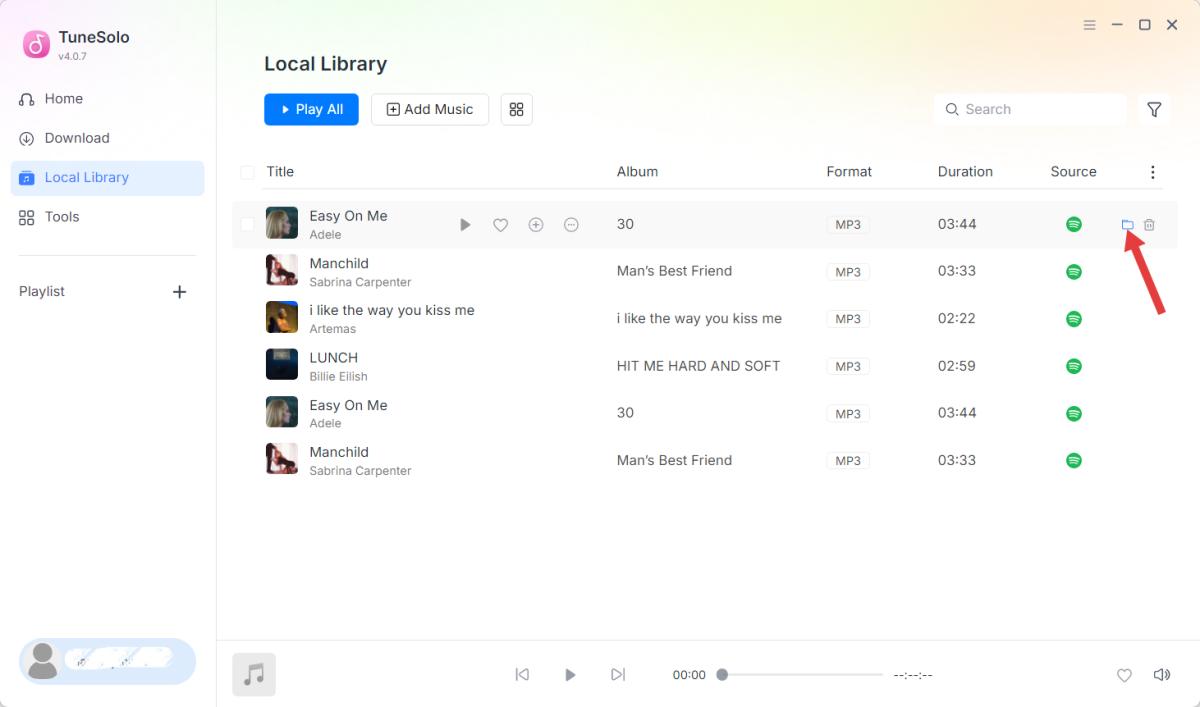
Após a conversão ser concluída, acesse a aba Biblioteca Local. Localize os arquivos de música Spotify baixados clicando em Exibir Arquivo de Saída ou Abrir Pasta. Suas músicas convertidas agora estão disponíveis para reprodução offline usando seu reprodutor de mídia preferido ou dispositivo compatível.
Parte 4. Como gerenciar sua conta TuneSolo
Ver informações da conta
Para acessar as informações da sua conta:
- Inicie o conversor de música TuneSolo.
- Clique no botão Conta, no canto inferior esquerdo da interface principal.
- Selecione Central de Contas.
Você será redirecionado automaticamente para a Central de Contas TuneSolo, onde poderá visualizar os detalhes da sua conta, incluindo tipo de assinatura, faturamento, informações de ativação e muito mais.
Reiniciar dispositivo
Se você vir uma mensagem indicando que o limite de dispositivos foi excedido, significa que a chave de licença já foi ativada no número máximo de dispositivos permitidos. Você pode redefinir a vinculação do dispositivo.
- Central de Abertura de Conta.
- Selecione Minha conta > Gerenciar dispositivos.
- Selecione o software que deseja usar para redefinir o dispositivo.
- Clique em "Redefinir todos os dispositivos".
- Em seguida, faça login no software novamente.
Observe que o número de reinicializações de dispositivos por autoatendimento é limitado. Assim que o limite for atingido, entre em contato com nossa equipe de suporte ([email protected]) e forneça seu endereço de e-mail cadastrado e a chave de licença para que possamos ajudar a redefinir a vinculação do dispositivo à sua licença.
Parte 5. FAQs
Quais são as limitações do período de teste gratuito?
O uso do código TuneSolo pode causar o banimento da minha conta de streaming?
TuneSolo não controla, gerencia ou toma decisões referentes a contas de terceiros. Quaisquer limitações, suspensões ou banimentos de contas resultantes do uso de um serviço de streaming são tratados de acordo com os termos, políticas e sistemas de segurança do próprio provedor do serviço.
Os usuários são responsáveis por garantir que o uso do TuneSolo esteja em conformidade com os termos de serviço aplicáveis de suas plataformas de streaming.
Caso tenha algum problema relacionado à sua conta, entre em contato com o provedor do serviço de streaming correspondente para obter assistência.
O modelo TuneSolo está disponível para Windows e Mac?
Preciso de uma conta em um serviço de streaming?
Posso usar minha licença em vários computadores?
O que acontece quando minha assinatura TuneSolo expira?

