 Apple Music Converter

Part 1. How to Activate TuneSolo Apple Music Converter
Step 1. Install TuneSolo Apple Music Converter
Visit the official TuneSolo website and download the latest version of TuneSolo Apple Music Converter for your operating system. You can also choose the appropriate installer below:
It is recommended to always download the latest version to enjoy new features, performance improvements, and bug fixes.
Step 2. Upgrade to Premium Membership
Before downloading music without limitations, you need to activate TuneSolo Apple Music Converter with a valid license. Activation unlocks all premium features.
- Trial Version: The trial version allows you to explore the software before purchasing a license. Depending on the product policy, certain limitations may apply, such as a limited conversion quantity and restricted access to premium features.
- Registered Version: After activating your license, you can use TuneSolo Apple Music Converter to download all content from Apple Music.
How to buy Apple Music Converter (Windows) >>>
How to buy Apple Music Converter (Mac) >>>
Step 3. Sign In to Your TuneSolo Account
- Open TuneSolo Apple Music Converter on your computer.
- Click the Sign In or Account button in the bottom-left corner of the main interface.
- Select "Log in with License" on the pop-up window.
- Enter both your email address and license key, and then click "Sign In" to activate your subscription.
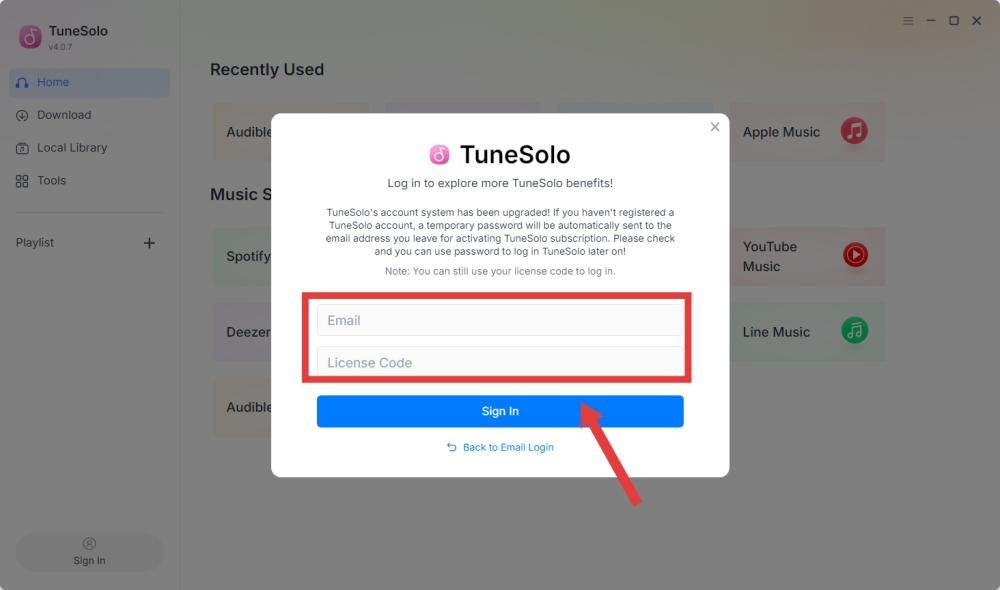
If the activation is successful, a confirmation message will appear, and all premium features will be unlocked immediately.
Step 4. Verify Your Activation Status
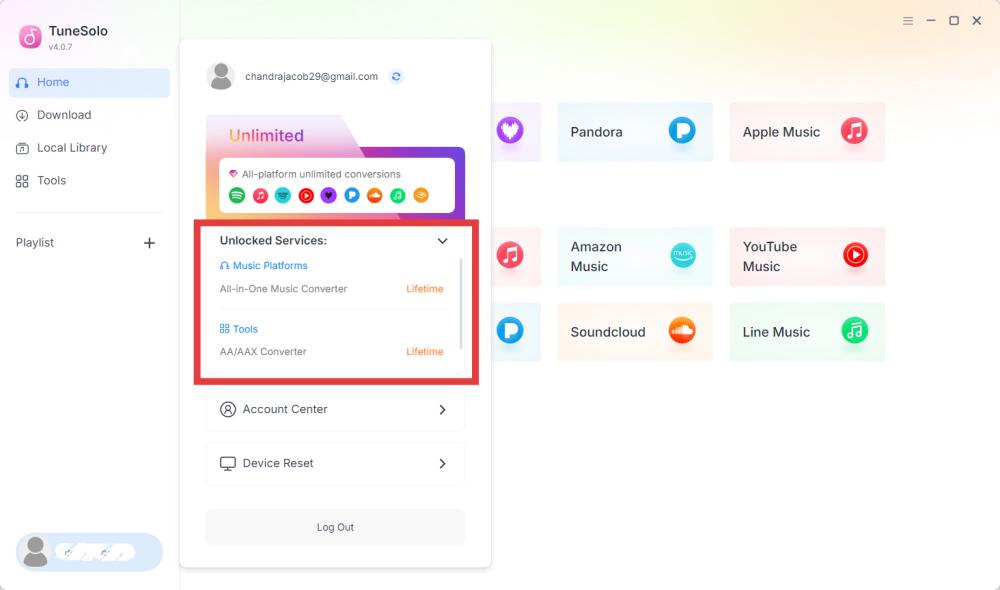
Click the Account button in the bottom-left corner of the main interface to confirm that the software has been activated. You should see information such as:
- Registered email
- Unlocked Services
- Expiration date (if applicable)
Solution for Invalid License Key:
- Copy and paste the license key directly from your purchase email.
- Verify that you purchased the correct product.
- Verify that you installed the correct version for the computer.
- Contact customer support with a screenshot if the issue persists.
Part 2. How to Configure Basic Settings
Before downloading music, it is recommended to configure the output settings according to your preferences. TuneSolo Apple Music Converter allows you to customize the output format, audio quality, destination folder, file naming rules, and other options to organize your downloaded music library better.
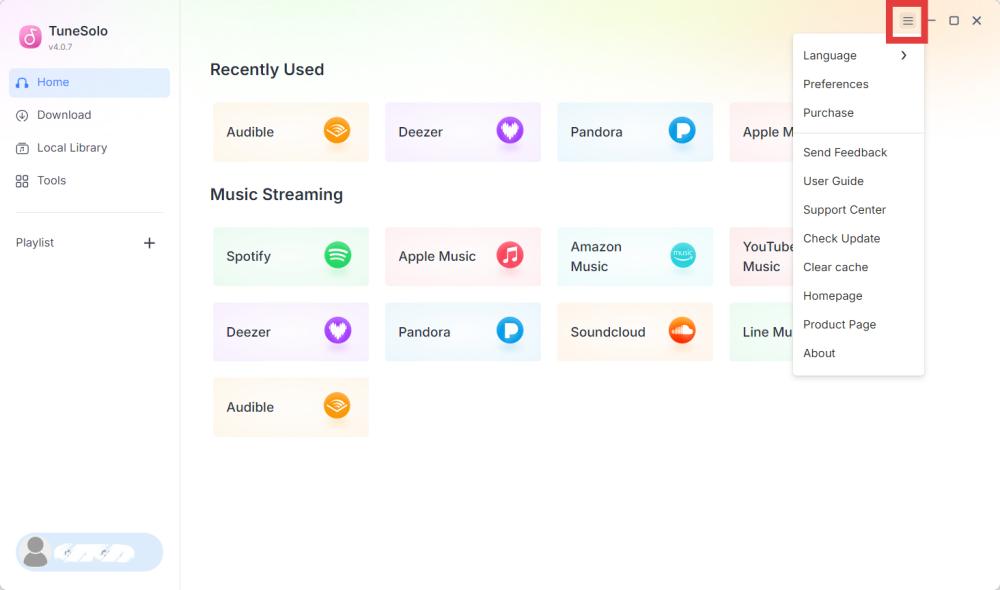
To open the Settings window, click the Menu icon in the upper-right corner of the program and select Preferences (or Settings, depending on your software version).
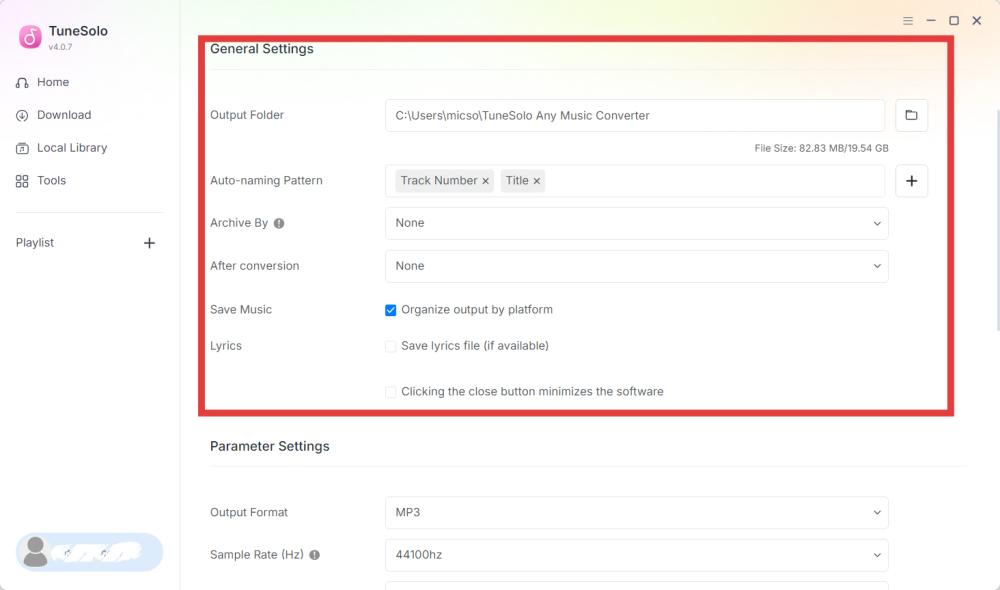
General Settings
- Output Folder: By default, downloaded files are saved to the system's default music folder. You can choose another location if preferred.
- Auto-naming Pattern: TuneSolo lets you automatically rename downloaded files using metadata. Available naming elements may include Track Number, Artist, Album, and others.
- Archive By: You can also organize downloaded files into folders automatically. Available organization methods may include: By Artist, By Album, and more.
- After conversion: You can choose the action to take after the music conversion is complete—for example, automatically exiting the program.
- Save Music: Organize output by platform or not.
- Lyrics
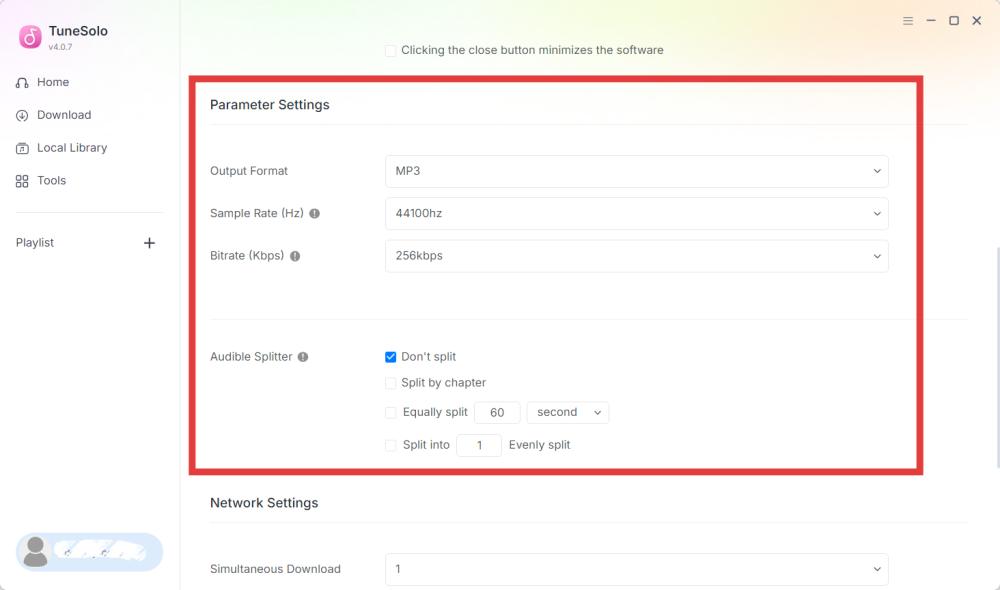
Parameter Settings
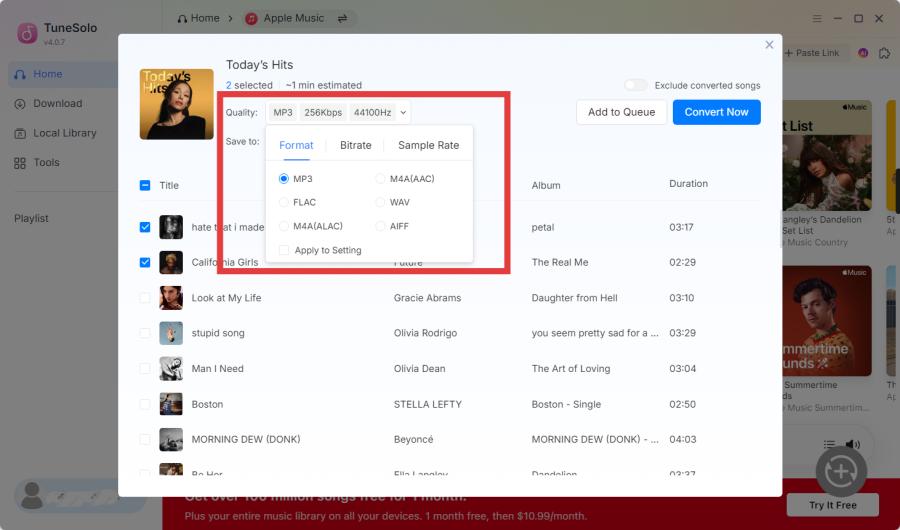
- Output Format: TuneSolo supports multiple output formats to ensure compatibility with different devices and media players. Available formats include MP3, M4A(AAC), FLAC, WAV, M4A(ALAC), and AIFF.
- Sample Rate (Hz): The sample rate determines how frequently audio is sampled during recording or conversion. Typical options include 22050 Hz, 44100 Hz (CD Quality), 48000 Hz, and Original.
- Bitrate (Kbps): The bitrate determines the amount of audio data stored per second. Higher bitrates generally produce better sound quality but result in larger file sizes. Common options include 128 kbps (casual listening), 256 kbps (high-quality music playback), 320 kbps (best quality for MP3 output) and Original.
- Audible Splitter: When converting Audible audiobooks, TuneSolo allows you to split long audiobooks into smaller segments for easier playback and file management.
Network Settings
- Simultaneous Download: It allows TuneSolo to download multiple tracks at the same time, which can significantly improve efficiency when downloading large playlists or albums.
- Proxy: If your network requires a proxy server to access the internet, you can configure the proxy settings in TuneSolo.
Part 3. How to Download Apple Music Songs to MP3
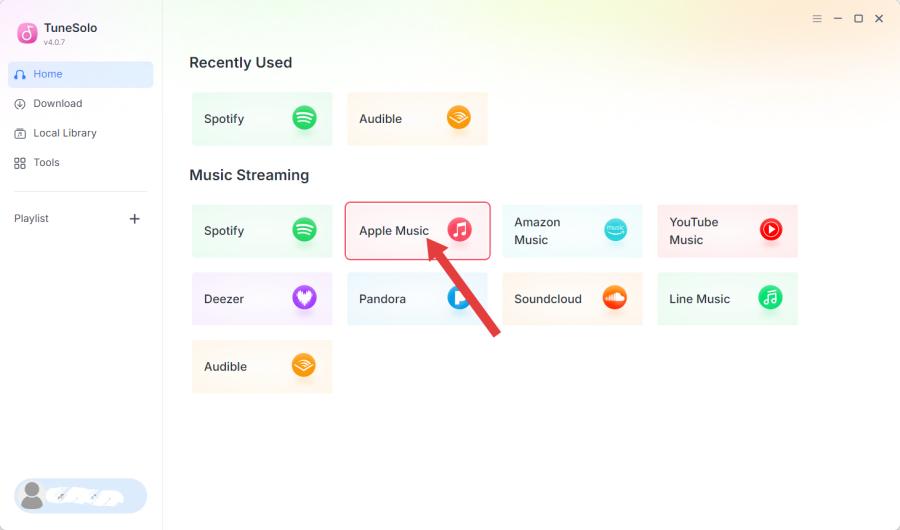
Step 1. Select Apple Music
Launch TuneSolo Apple Music Converter. Click Apple Music. The built-in web player will open automatically.
Step 2. Sign In to Your Apple Music Account
To access your personal library, playlists, and saved content, sign in with your Apple Music account.
*Note: TuneSolo does not store your account password. Authentication is handled through the official web player of the selected streaming service.
Step 3. Add Song to the Conversion List
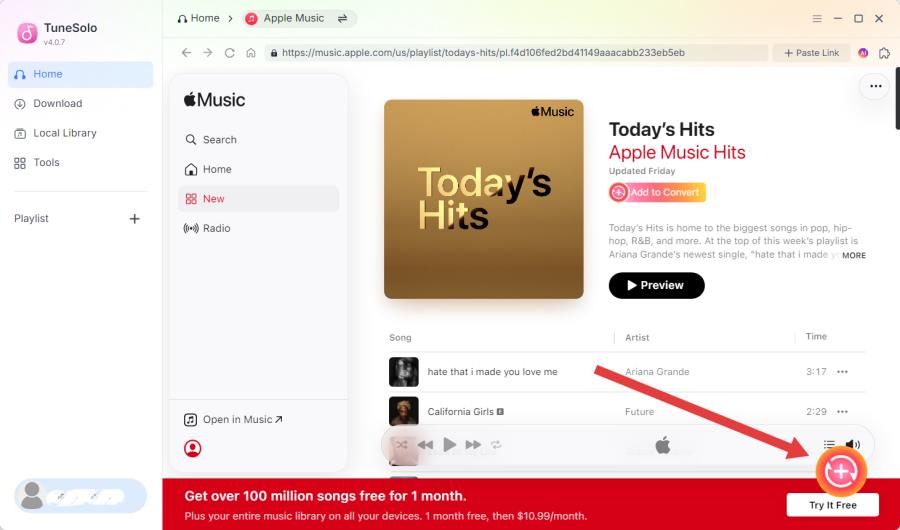
Use the search bar or browse your library to locate the desired content. Then you can do this by either:
- Dragging the song or playlist to the Add button, or
- Opening the album, playlist, or audiobook and clicking Add to Conversion List.
TuneSolo will analyze the selected content and display all available tracks.
*Song availability may vary by region or streaming account type.
Step 4. Configure Output Settings
Review the list and uncheck any items you do not wish to download. Before downloading, review your output settings such as output format, output folder, and audio quality.
Step 5. Start Downloading
Click Convert Now, Download, or Convert All (depending on the software version) to begin downloading the selected content.
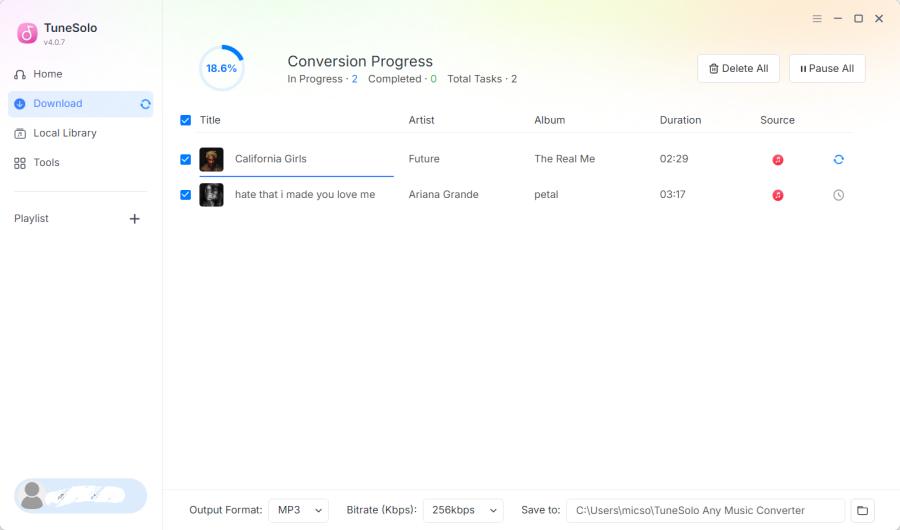
Step 6. Access Your Downloaded Files
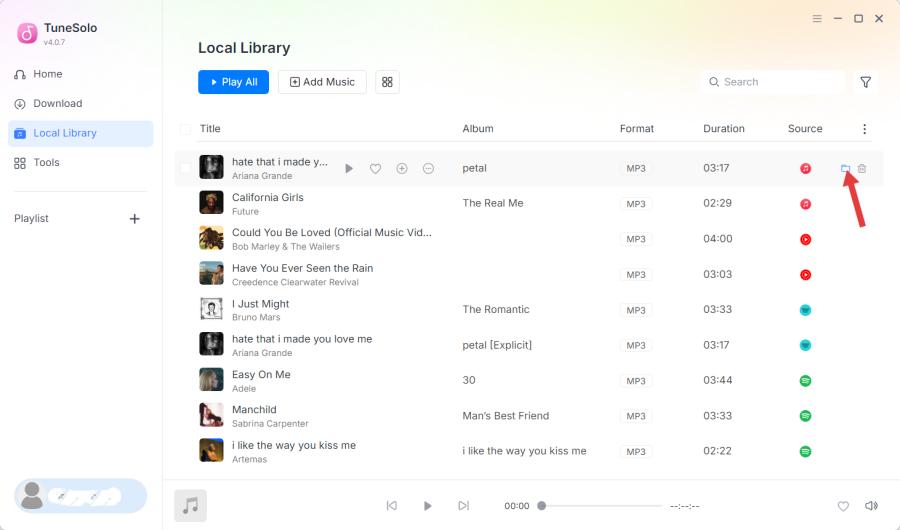
After the conversion is complete, switch to the Local Library tab. Locate the downloaded Apple Music song files by clicking View Output File or Open Folder. Your converted music is now available for offline playback using your preferred media player or compatible device.
Part 4. How to Manage Your TuneSolo Account
View Account Information
To access your account information:
- Launch TuneSolo Music Converter.
- Click the Account button in the bottom-left corner of the main interface.
- Select Account Center.
This will automatically redirect to the TuneSolo Account Center, where you can view your account details, including subscription type, billing, activation information, and more.
Device Reset
If you are seeing a message indicating that the device limit has been exceeded, it means the license key has already been activated on the maximum number of allowed devices. You may reset the device binding.
- Open Account Center.
- Select My Account > Manage devices.
- Select the software you want to use to reset the device.
- Click Reset all devices.
- Afterwards, log in to the software again.
Please note that the number of self-service device resets is limited. Once the limit is reached, please contact our support team ([email protected]) and provide your registered email address and license key so we can help reset the device binding for your license.
Part 5. FAQs
What are the limitations of the free trial?
Will using TuneSolo cause my streaming account to be banned?
TuneSolo does not control, manage, or make decisions regarding third-party accounts. Any account limitations, suspensions, or bans resulting from the use of a streaming service are handled according to the service provider’s own terms, policies, and security systems.
Users are responsible for ensuring that their use of TuneSolo complies with the applicable terms of service of their streaming platforms.
If you experience any account-related issues, please contact the relevant streaming service provider for assistance.
Is TuneSolo available for Windows and Mac?
Do I need a streaming service account?
Can I use my license on multiple computers?
What happens when my TuneSolo subscription expires?

